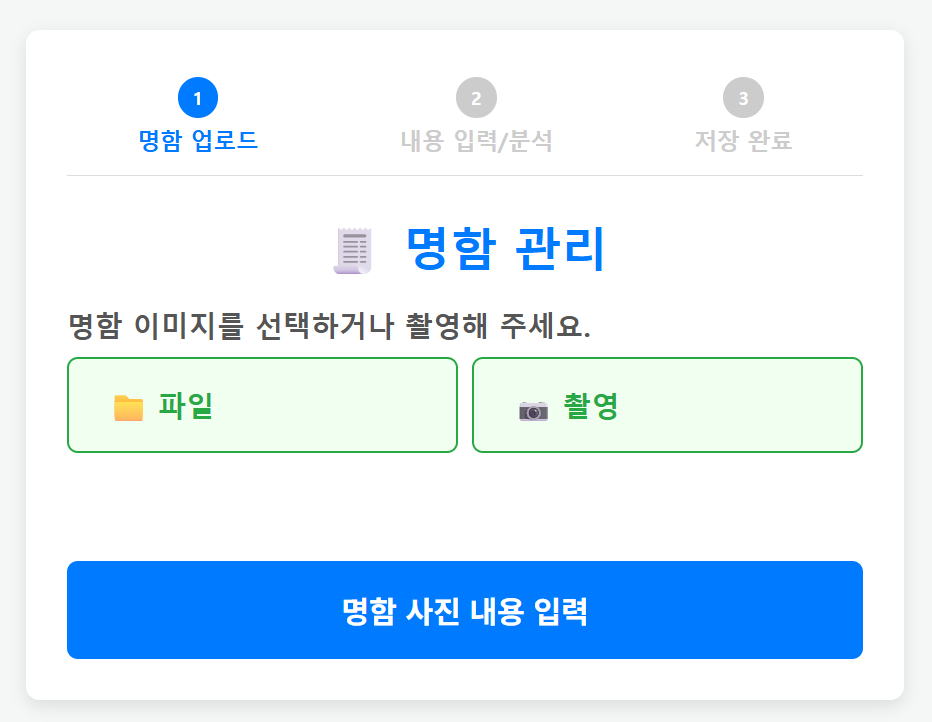
- 휴대폰 갤러리에 보관된 명함 이미지 파일 또는 직접 촬영한 후
- 명함 사진 내용 입력 버튼을 터치
- 이미지의 텍스트를 분석한 후 그 결과를 보여준다
- 분석 오류가 있는 정보는 수정하여 저장 버튼을 누르면 구글 시트에 보관 된다.
업로드한 파일 또는 촬영한 사진은 구글 폴더에 보관되고, 명함정보는 구글 시트에 보관된다.
그럼 실습 시작 해볼까요~~~
1. 구글 드라이브로 들어가서
"명함관리" 폴더를 하나 만들고, 명함관리 폴더로 들어가서 다시 "명함이미지" 폴더를 만든다.
명함관리 폴더는 링크가 있는 사용자 뷰 권한을 설정하고
명함이미지 폴더는 링크가 있는 사용자 편집 권한(누구나 사용가능), 뷰 권한(본인 계정만 사용)

을 설정한다.(누구나 사용가능)
2. 명함관리 폴더에 구글시트를 만든 후 그 이름을 명함관리로 변경하고, 시트명은 명함이라 수정한다.

3. 메뉴 확장프로그램을 눌러서 Apps Scripts 를 클릭한다.
Code.gs 를 클릭하여 우측에 있는 코드를 지우고 아래 코드를 복사하여 붙여 넣는다.
..
// =================================================================
// 전역 설정 변수
// =================================================================
const SPREADSHEET_URL = '구글 시트 URL';
const SHEET_NAME = '명함';
const DRIVE_FOLDER_URL = '명함이미지 폴더 URL';

function getDriveFolderId(url) {
    const match = url.match(/folders\/([a-zA-Z0-9_-]+)/);
    if (match && match[1]) return match[1];
    throw new Error('Drive 폴더 URL 확인 필요');
}

const DRIVE_FOLDER_ID = getDriveFolderId(DRIVE_FOLDER_URL);

function doGet(e) {
  return HtmlService.createTemplateFromFile('index')
      .evaluate()
      .setTitle('명함 자동 등록')
      .addMetaTag('viewport', 'width=device-width, initial-scale=1');
}


// =================================================================
// 2. 파일 업로드 및 OCR (수정됨)
// =================================================================
function doUploadAndOCR(base64Data) {
  try {
    const parts = base64Data.split(',');
    const contentType = parts[0].match(/:(.*?);/)[1];
    const decoded = Utilities.base64Decode(parts[1]);
    const blob = Utilities.newBlob(decoded, contentType, 'BizCard_' + new Date().getTime());

    // 1. 원본 파일 저장
    const folder = DriveApp.getFolderById(DRIVE_FOLDER_ID);
    const originalFile = folder.createFile(blob);
    const fileId = originalFile.getId();

    // 2. OCR 실행 (Drive API v2 문법 수정)
    // 원본 파일을 Google Docs로 변환하면서 OCR 수행
    const resource = {
      title: 'OCR_TEMP_' + fileId,
      mimeType: contentType
    };

    // 중요: ocr=true, ocrLanguage=ko 옵션 적용
    const ocrFile = Drive.Files.insert(resource, blob, {
      ocr: true,
      ocrLanguage: "ko"
    });

    // 3. 추출된 텍스트 읽기
    const doc = DocumentApp.openById(ocrFile.id);
    const extractedText = doc.getBody().getText();

    // 4. 임시 파일 즉시 삭제 (휴지통이 아닌 영구 삭제 권장하나 안전상 trashed)
    Drive.Files.remove(ocrFile.id);

    // 5. 파싱
    const resultData = parseReceiptText(extractedText);

    return {
        success: true,
        driveFileId: fileId,
        ...resultData
    };

  } catch (e) {
    return { success: false, message: 'OCR 오류: ' + e.toString() };
  }
}

// 파싱 로직은 기존 코드의 정규표현식이 훌륭하므로 유지하되 에러 방지 코드 추가
function parseReceiptText(text) {
  if (!text) return { mname: '', mphone: '', mcompany: '', memail: '', maddress: '', mwebsite: '', msns: '' };

  const lines = text.split('\n').map(line => line.trim()).filter(line => line.length > 1);
  const fullText = lines.join(' ');

  // 주소 추출 정규식 (한국 주소 패턴)
  // 특별시, 광역시, 도, 시, 구, 군, 면, 리, 로, 길 패턴을 검색
  const addressMatch = text.match(/[가-힣]+[시|도]\s[가-힣]+[시|군|구]\s?[가-힣\d\s\-\,]+[로|길|동|면|리]\s?\d+/);
  const maddress = addressMatch ? addressMatch[0] : '';

  // 2. 이메일 추출 (정규식)
  const emailMatch = fullText.match(/[a-zA-Z0-9._%+-]+@[a-zA-Z0-9.-]+\.[a-zA-Z]{2,}/);
  const memail = emailMatch ? emailMatch[0] : '';

  // 3. 전화번호 추출 (휴대폰 번호 우선 검색)
  let mphone = '';
  const mobileMatch = fullText.match(/(010)[-\.\s]?\d{3,4}[-\.\s]?\d{4}/);
  const officeMatch = fullText.match(/\d{2,3}[-\.\s]?\d{3,4}[-\.\s]?\d{4}/);
  mphone = mobileMatch ? mobileMatch[0] : (officeMatch ? officeMatch[0] : '');

  // 4. 웹사이트 및 SNS 추출
  const urlMatch = fullText.match(/(https?:\/\/|www\.)[a-zA-Z0-9\-\.]+\.[a-zA-Z]{2,}[^\s]*/i);
  mwebsite = urlMatch ? urlMatch[0] : '';
  const snsMatch = fullText.match(/@(?!.*\.com)[a-zA-Z0-9._]+/);
  msns = snsMatch ? snsMatch[0] : "";

  // 5. 이름 및 직함 추측 로직
  let mname = '';
  let mcompany = '';

  const positionKeywords = ['대표', '이사', '팀장', '부장', '과장', '대리', '사원', 'CEO', 'Manager', 'Director', '본부장'];
  const companyKeywords = ['주식회사', '(주)', 'Ltd', 'Corp', 'Inc', '컴퍼니', 'Group', '연구소'];

  for (let i = 0; i < Math.min(lines.length, 5); i++) { // 상위 5줄 내에서 탐색
    let line = lines[i];

    // 직함이 포함된 줄인지 확인
    let foundPosition = positionKeywords.find(p => line.includes(p));

    if (foundPosition && !mname) {
      mname = line.replace(foundPosition, '').replace(/[^\sㄱ-ㅎ가-힣a-zA-Z]/g, '').trim();
    }
    if (companyKeywords.some(k => line.includes(k)) && !mcompany) {
      mcompany = line;
    }
  }

  // 이름을 못 찾았을 경우: 보통 첫 번째 또는 두 번째 줄에 2~4글자 이름이 위치함
  if (!mname) {
    const nameCandidate = lines.find(l => l.length >= 2 && l.length <= 4 && !l.includes('시') && !l.includes('구'));
    mname = nameCandidate || lines[0];
  }

  let rtext = text;
  return { mname, mphone, mcompany, memail, maddress, mwebsite, msns, rtext };
}

function doSaveData(formData, driveFileId) {
  try {
    const ss = SpreadsheetApp.openByUrl(SPREADSHEET_URL);
    const sheet = ss.getSheetByName(SHEET_NAME);
    const driveFile = DriveApp.getFileById(driveFileId);

    // 파일 권한 변경 (링크가 있는 모든 사용자가 볼 수 있게 설정 - 선택사항)
    // driveFile.setSharing(DriveApp.Access.ANYONE_WITH_LINK, DriveApp.Permission.VIEW);

    sheet.appendRow([
      new Date(),
      formData.mname,
      formData.mphone,
      formData.mcompany,
      formData.memail,
      formData.maddress,
      formData.mwebsite,
      formData.msns,
      driveFile.getUrl(),
      formData.rtext
    ]);

    return { success: true };
  } catch (e) {
    return { success: false, message: e.toString() };
  }
}
이어서 좌측에 파일 우측에 + 누른 후, HTML 선택한 후 파일명을 index 라고 입력한다.
index.html 을 클릭 한 후 좌측에 보이는 코드 지우고 아래 코드를 복사한 후 붙여 넣는다.
<!DOCTYPE html>
<html>
<head>
  <base target="_top">
  <meta name="viewport" content="width=device-width, initial-scale=1.0">
  <style>
    /* 기본 및 공통 스타일 */
    body {
      font-family: 'Malgun Gothic', sans-serif;
      background-color: #f4f7f6;
      display: flex;
      justify-content: center;
      align-items: center;
      min-height: 100vh;
      margin: 0;
      font-size: 14px;
      box-sizing: border-box;
    }
    .container {
      width: 80vw;
      max-width: 650px;
      background: #ffffff;
      padding: 30px;
      border-radius: 10px;
      box-shadow: 0 4px 12px rgba(0, 0, 0, 0.1);
      box-sizing: border-box;
    }
    h2 { color: #007bff; margin-bottom: 20px; font-size: 2.5em; text-align: center; }

    /* 1. 단계 표시기 스타일 */
    .step-indicator {
      display: flex;
      justify-content: space-between;
      margin-bottom: 30px;
      padding-bottom: 10px;
      border-bottom: 1px solid #ddd;
      position: relative;
    }
    .step {
      counter-increment: step;
      flex-grow: 1;
      text-align: center;
      padding: 5px 0;
      font-weight: bold;
      color: #ccc;
      transition: color 0.3s;
      position: relative;
      font-size: 1.2em;
    }
    .step::before {
      content: counter(step);
      width: 30px;
      height: 30px;
      line-height: 30px;
      border-radius: 50%;
      background: #ccc;
      color: white;
      display: block;
      margin: 0 auto 5px;
      transition: background 0.3s;
      font-size: 0.8em;
    }
    .step.active {
      color: #007bff;
    }
    .step.active::before {
      background: #007bff;
    }
    .step.completed {
      color: #28a745;
    }
    .step.completed::before {
      background: #28a745;
    }

    /* 2. 폼 및 입력 스타일 */
    .form-group { margin-bottom: 1.6rem; }
    label { display: block; margin-bottom: 0.6rem; font-weight: bold; color: #555; font-size: 1.3rem; }
    input[type="text"], input[type="date"], select {
      width: 100%; padding: 1rem; border: 1px solid #ccc; border-radius: 0.3125rem; box-sizing: border-box;
      font-size: 1.2rem;
    }
    textarea{width: 100%;height:100px}
    .radio-group {
      display: flex; gap: 2rem; padding: 1rem; border: 1px solid #eee; border-radius: 0.3125rem;
    }
    .radio-group label { font-size: 1.3rem; display: flex; align-items: center; margin-bottom: 0; }
    .radio-group input[type="radio"] { width: 1.8rem; height: 1.6rem; margin-right: 0.6rem; }

    /* 3. 버튼 및 메시지 스타일 */
    button {
      padding: 20px 30px; border: none; border-radius: 8px; cursor: pointer; font-size: 1.6em; font-weight: bold;
      width: 100%; margin-top: 15px; transition: background-color 0.3s;
    }
    #analyzeBtn { background-color: #007bff; color: white; }
    #analyzeBtn:hover { background-color: #0056b3; }
    #saveBtn { background-color: #28a745; color: white; margin-top: 30px; }
    #saveBtn:hover { background-color: #218838; }

    #loading { margin-top: 30px; padding: 20px; border-radius: 8px; font-weight: bold; display: none; font-size: 1.8em; color: #007bff; }
    #statusMessage { background-color: #f8d7da; color: #721c24; margin-top: 20px; padding: 15px; border-radius: 5px; font-weight: bold; display: none; font-size: 1.2em; }

    /* 4. 파일 선택 버튼 스타일 (Index Screen) */
    .file-input-wrapper { position: relative; overflow: hidden; display: inline-block; width: 100%; margin-bottom: 30px; }
    .file-input-wrapper input[type="file"] { position: absolute; left: 0; top: 0; opacity: 0; cursor: pointer; height: 100%; width: 100%; }
    .custom-file-button {
        padding: 20px 30px; border: 2px solid #28a745; border-radius: 8px; cursor: pointer; font-size: 1.5em; font-weight: bold;
        background-color: #f0fff0; color: #28a745; display: block; transition: background-color 0.3s;
    }
    .custom-file-button.file-selected { background-color: #28a745; color: white; }
    .custom-file-button:hover { background-color: #e6ffe6; }

    /* 5. 로딩 애니메이션 및 숨김 처리 */
    #loading-dots::after { content: ''; animation: dots 1s steps(5, end) infinite; }
    @keyframes dots { 0% { content: '.'; } 25% { content: '..'; } 50% { content: '...'; } 75% { content: '....'; } 100% { content: '.'; } }
    .screen { display: none; } /* 모든 화면을 기본적으로 숨김 */

    /* 6. 완료 화면 스타일 */
    #complete-screen h2 { color: #28a745; font-size: 3em; }
    /* 💡 수정 사항: 완료 메시지 텍스트 삭제 */
    #complete-screen p { color: #555; font-size: 1.8em; height: 1.6em; margin-bottom: 40px; }
    #homeBtn { background-color: #007bff; color: white; font-size: 1.6em; padding: 15px 30px; }
    #homeBtn:hover { background-color: #0056b3; }

    /* 7. 모바일 최적화 */
    @media (max-width: 600px) {
      body { font-size: 16px; }
      .container { width: 90vw; padding: 20px; }
      h2 { font-size: 2em; }
      .custom-file-button {font-size: 1.2em;}
      label, .radio-group label { font-size: 0.8em; }
      input[type="text"], input[type="date"], select, button { font-size: 1.1em; }
      .radio-group { flex-direction: column; gap: 0.8rem; }
      .radio-group input[type="radio"] { width: 1.3rem; height: 1.3rem; }
      .step { font-size: 0.9em; }
    }
  </style>
</head>
<body>
  <div class="container">

    <div class="step-indicator" id="stepIndicator">
      <div class="step active" data-step="1">명함 업로드</div>
      <div class="step" data-step="2">내용 입력/분석</div>
      <div class="step" data-step="3">저장 완료</div>
    </div>

    <div id="upload-screen" class="screen">
      <h2>🧾 명함 관리</h2>

      <div class="form-group">
        <label id="uploadMessage">명함 이미지를 선택하거나 촬영해 주세요.</label>
        <div style="display:flex; gap:10px;">
          <div class="file-input-wrapper" style="flex:1;">
            <label class="custom-file-button" for="receiptGallery">📁 파일</label>
            <input type="file" id="receiptGallery" accept="image/*"
             onchange="handleImageSelect(this)">
          </div>
          <div class="file-input-wrapper" style="flex:1;">
            <label class="custom-file-button" for="receiptCamera">📷 촬영</label>
            <input type="file" id="receiptCamera" accept="image/*" capture="environment" onchange="handleImageSelect(this)">
          </div>
        </div>
      </div>

      <button id="analyzeBtn" onclick="startAnalysis()">명함 사진 내용 입력</button>
      <div id="loading">분석 중<span id="loading-dots"></span></div>
    </div>

    <div id="detail-screen" class="screen">
      <h2>📝 명함 내용 입력</h2>
      <form id="receiptForm">
        <div class="form-group">
          <label for="mname">이름</label>
          <input type="text" id="mname" name="mname">
        </div>
        <div class="form-group">
          <label for="mphone">전화</label>
          <input type="text" id="mphone" name="mphone">
        </div>
        <div class="form-group">
          <label for="mcompany">회사명</label>
          <input type="text" id="mcompany" name="mcompany">
        </div>
        <div class="form-group">
          <label for="memail">메일</label>
          <input type="text" id="memail" name="memail">
        </div>
        <div class="form-group">
          <label for="maddress">주소</label>
          <input type="text" id="maddress" name="maddress"  placeholder="도로명주소">
        </div>
        <div class="form-group">
          <label for="mwebsite">웹사이트</label>
          <input type="text" id="mwebsite" name="mwebsite">
        </div>
        <div class="form-group">
          <label for="msns">SNS</label>
          <input type="text" id="msns" name="msns">
        </div>
        <div class="form-group">
          <textarea id="rtext" name="rtext"></textarea>
        </div>

        <button type="button" id="saveBtn" onclick="saveData()">저장</button>
      </form>
      <div id="loadingDetail" style="display:none;">저장 중<span id="loading-dots"></span>...</div>
    </div>

    <div id="complete-screen" class="screen" style="text-align: center;">
      <h2>🎉 명함 입력이 완료되었습니다.</h2>
      <p></p>
      <button id="homeBtn" onclick="resetApp()">새 명함 입력</button>
    </div>

    <div id="statusMessage"></div>
  </div>

<script>
  const uploadScreen = document.getElementById('upload-screen');
  const detailScreen = document.getElementById('detail-screen');
  const completeScreen = document.getElementById('complete-screen');
  const stepIndicator = document.getElementById('stepIndicator');

  const analyzeBtn = document.getElementById('analyzeBtn');
  const loading = document.getElementById('loading');
  const uploadMessage = document.getElementById('uploadMessage');
  //const fileButtonLabel = document.getElementById('fileButtonLabel');
  const receiptForm = document.getElementById('receiptForm');
  const statusMessage = document.getElementById('statusMessage');

  let driveFileId = null;
  let selectedFile = null;
  const ANALYSIS_TIMEOUT = 120000; //2분
  let timeoutId;

  // 앱 초기화 및 시작 (항상 업로드 화면으로 시작)
  document.addEventListener('DOMContentLoaded', function() {
    showScreen('upload-screen');
    updateStep(1);
  });

  // --- 1. 화면 전환 및 단계 업데이트 ---

  /** 현재 화면을 숨기고 다음 화면을 표시합니다. */
  function showScreen(screenId) {
    document.querySelectorAll('.screen').forEach(el => el.style.display = 'none');
    document.getElementById(screenId).style.display = 'block';
  }

  /** 단계 표시기를 업데이트합니다. */
  function updateStep(currentStep) {
    document.querySelectorAll('.step').forEach(el => {
      const stepNum = parseInt(el.getAttribute('data-step'));
      el.classList.remove('active', 'completed');
      if (stepNum < currentStep) {
        el.classList.add('completed');
      } else if (stepNum === currentStep) {
        el.classList.add('active');
      }
    });
  }

  /** 전체 앱을 초기화하고 첫 화면으로 돌아갑니다. */
  function resetApp() {
    receiptForm.reset();
     selectedFile = null;
    document.getElementById('receiptGallery').value = '';
    document.getElementById('receiptCamera').value = '';
    uploadMessage.textContent = '명함 이미지를 선택하거나 촬영해 주세요.';
    showStatus('', 'none');

    updateStep(1);
    showScreen('upload-screen');
  }

  // --- 2. 공통 로직 ---

  function showStatus(message, type = 'error') {
    statusMessage.textContent = message;
    statusMessage.style.display = 'block';
    statusMessage.style.backgroundColor = type === 'error' ? '#f8d7da' :
                                         type === 'success' ? '#d4edda' : '#d1ecf1';
    statusMessage.style.color = type === 'error' ? '#721c24' :
                                  type === 'success' ? '#155724' : '#0c5460';
  }

  function toggleProcessing(isProcessing) {
    clearTimeout(timeoutId);
    analyzeBtn.disabled = isProcessing;
    loading.style.display = isProcessing ? 'block' : 'none';

    if (isProcessing) {
      analyzeBtn.textContent = '분석 중...'+selectedFile.name;
        timeoutId = setTimeout(() => {
          handleAnalysisError("분석 시간이 오래 걸립니다. 서버 연결 상태를 확인하거나 잠시 후 다시 시도해 주세요.");
        }, ANALYSIS_TIMEOUT);
    } else {
      analyzeBtn.textContent = '명함 사진 내용 입력';
      statusMessage.style.display = 'none';
    }
  }


  function handleImageSelect(input) {
    if (!input.files || input.files.length === 0) return;

    selectedFile = input.files[0];

    let fileName = selectedFile.name || '촬영된 이미지';
    if (fileName.length > 25) {
      fileName = fileName.substring(0, 22) + '...';
    }

    uploadMessage.textContent = '명함 사진 내용 입력 버튼을 눌러주세요.';
  }

  // --- 3. 1단계 (업로드) 로직 ---

  function startAnalysis() {
    if (!selectedFile) {
      showStatus('📸 명함 이미지를 선택하거나 촬영해주세요.');
      return;
    }
    toggleProcessing(true);

    const reader = new FileReader();

  reader.onload = function(e) {
    const img = new Image();
    img.onload = function() {
      // --- 이미지 리사이징 로직 추가 ---
      const canvas = document.createElement('canvas');
      const MAX_WIDTH = 1000; // 가로 1000px로 축소 (OCR에 최적)
      let width = img.width;
      let height = img.height;

      if (width > MAX_WIDTH) {
        height *= MAX_WIDTH / width;
        width = MAX_WIDTH;
      }
      canvas.width = width;
      canvas.height = height;

      const ctx = canvas.getContext('2d');
      ctx.drawImage(img, 0, 0, width, height);

      // 용량을 줄이기 위해 jpeg 70% 품질로 변환
      const compressedBase64 = canvas.toDataURL('image/jpeg', 0.7);

      // 서버 함수 호출
      google.script.run
        .withSuccessHandler(handleAnalysisResponse)
        .withFailureHandler(handleAnalysisError)
        .doUploadAndOCR(compressedBase64);
      };
      img.src = e.target.result;
    };
    reader.readAsDataURL(selectedFile);
  }

  function handleAnalysisResponse(response) {
    toggleProcessing(false);
    if (response.success) {
      // 💡 수정 사항: 분석 성공 후 상태 메시지 출력은 하지 않음

      // Drive File ID 저장 및 Detail Screen으로 전환
      driveFileId = response.driveFileId;

      document.getElementById('mname').value = response.mname || '';
      document.getElementById('mphone').value = response.mphone || '';
      document.getElementById('mcompany').value = response.mcompany || '';
      document.getElementById('memail').value = response.memail || '';
      document.getElementById('maddress').value = response.maddress || '';
      document.getElementById('mwebsite').value = response.mwebsite || '';
      document.getElementById('msns').value = response.msns || '';
      document.getElementById('rtext').value = response.rtext || '';

      updateStep(2);
      showScreen('detail-screen'); // SPA 화면 전환
    } else {
      showStatus('❌ 분석 실패: ' + response.message);
    }
  }

  function handleAnalysisError(error) {
    toggleProcessing(false);
    showStatus('❌ 서버 오류: ' + (error.message || error).toString());
  }

  // --- 4. 2단계 (입력/저장) 로직 ---

  function saveData() {
    if (!driveFileId) {
      showStatus('⚠️ 이미지 파일 ID가 누락되었습니다. 다시 업로드해 주세요.', 'error');
      return;
    }

    if (!receiptForm.checkValidity()) {
        receiptForm.reportValidity();
        return;
    }

    // 폼 데이터 수집
    const formData = {
      mname: document.getElementById('mname').value,
      mphone: document.getElementById('mphone').value,
      mcompany: document.getElementById('mcompany').value,
      memail: document.getElementById('memail').value,
      maddress: document.getElementById('maddress').value,
      mwebsite: document.getElementById('mwebsite').value,
      msns: document.getElementById('msns').value,
      rtext: document.getElementById('rtext').value,
    };

    // 로딩 및 상태 메시지 처리
    document.getElementById('saveBtn').disabled = true;
    document.getElementById('loadingDetail').style.display = 'block';

    // 서버 측 Apps Script 함수 호출
    google.script.run
        .withSuccessHandler(handleSaveResponse)
        .withFailureHandler(handleSaveError)
        .doSaveData(formData, driveFileId);
  }

  function handleSaveResponse(response) {
    document.getElementById('saveBtn').disabled = false;
    document.getElementById('loadingDetail').style.display = 'none';

    if (response.success) {
      // 3단계 (완료 화면)로 전환
      updateStep(3);
      showScreen('complete-screen');
    } else {
      showStatus('❌ 저장 실패: ' + response.message);
    }
  }

  function handleSaveError(error) {
    document.getElementById('saveBtn').disabled = false;
    document.getElementById('loadingDetail').style.display = 'none';
    showStatus('❌ 저장 중 서버 오류: ' + (error.message || error).toString());
  }
</script>
</body>
</html>
4. 우측 상단에 파란색 배포 -> 새배포 -> 웹 앱
다음 사용자 인증 정보로 실행은 나
액세스 권한이 있는 사용자 모든 사용자
배포 버튼을 누르면
웹 앱 URL 이 파란색으로 보인다,
이 URL을 PC 브라우저나 폰 브라우저에 넣어서 실행하면 된다.
'AppSheet' 카테고리의 다른 글
| 구글 앱스크립트 11차시 - 통합 메뉴와 최종 마무리 (4) | 2025.12.21 |
|---|---|
| 구글 앱스크립트 10차시 - 실전 프로젝트와 배포 (1) | 2025.12.20 |
| 구글 앱스크립트 9차시 - 구글 드라이브와 외부 API (3) | 2025.12.20 |
| 구글 앱스크립트 8차시 - 이메일 자동화와 트리거 (1) | 2025.12.20 |
| 구글 앱스크립트 7차시 - 사용자 정의 함수와 메뉴 (2) | 2025.12.20 |


